Fleet Operations Customer Contract Import
Introduction
This will import Fleet Operations vehicles in to ViSN, and allocate vehicles to sub-customers using the Customer Account Number field
download sample Fleet Operations customer contract import file.
File format
Comma Separated Values - *.csv
Encoding - UTF-8
Fleet Operations Customer Customers Import
| Sr. no. | Fields in Fleet Operations File | Map to ViSN customer-contract | Description | Max length | Rules / Validation | Mandatory | Example |
|---|---|---|---|---|---|---|---|
| A | Registration | REGISTRATION | REGISTRATION | 10 | A-Z & 0-9 | Y | AM10JKL |
| B | VIN | VIN | VIN | 20 | [A-Z] [0-9] and special characters - Standard VIN Format | N | WVWZZZ1KZAM10JKL1 |
| C | Asset Number | ASSET NUMBER | ASSET NUMBER | 10 | A-Z & 0-9 | N | ASSET003 |
| D | Registration Date | REGISTRATION DATE | REGISTRATION DATE | 10 | [0-9] ddmmyyyy | N | 15062023 |
| E | Make | MAKE | MAKE | 50 | A-Z & 0-9 and Special Characters | N | Volkswagen |
| F | Model | MODEL | MODEL | 50 | A-Z & 0-9 and Special Characters | N | Golf |
| G | Specification | Specification | String | 100 | A-Z & 0-9, spaces, dash, hyphen and special characters | N | Match |
| H | Fuel Type | Fuel Type | Fuel Type | 50 | All Characters and Special Characters | N | Diesel |
| I | Vehicle Type | Vehicle Type | Vehicle Type | 10 | A-Z & 0-9 and special characters | Y | Car |
| J | Contract Start Date | CONTRACT START DATE | CONTRACT START DATE | 10 | [0-9] ddmmyyyy | N | 15062023 |
| K | Contract End Date | CONTRACT END DATE | CONTRACT END DATE | 10 | [0-9] ddmmyyyy | N | 15062026 |
| L | Contract Mileage Term | MILEAGE | Mileage | 6 | 0-9 | N | 20000 |
| M | CAPID | CAP ID | CAP ID | 20 | [A-Z] [0-9] and Special Characters | N | CAPID003 |
| N | Argic Code | Argic Code | String | 20 | A-Z & 0-9, spaces and special characters | N | ARGIC03 |
| O | Colour | COLOUR | COLOUR | 200 | A-Z & 0-9 and Special Characters | N | Grey |
| P | MOT Due Date | MOT DUE DATE | MOT DUE DATE | 10 | [0-9] ddmmyyyy | N | 15062027 |
| Q | Maintained | Maintained | Managed / non-managed | N/A | true / false | Y | true |
| R | Vehicle Product | Vehicle Product | Fleet Managed | 50 | A-Z & 0-9 and Special Characters | N | Fleet Managed |
| S | Service Schedule | Service Schedule | Service Schedule | 8 | [0-9] | N | 24000 |
| T | Warranty Parameter Months | Warranty Parameter Months | Number | 3 | [0-9] | N | 48 |
| U | Warranty Parameter Mileage | WARRANTY MILEAGE | WARRANTY MILEAGE | 6 | [0-9] | N | 85000 |
| V | Fridge | Fridge | String | 1 | Y or N | N | N |
| W | Tail Lift | Tail Lift | String | 1 | Y or N | N | N |
| X | Crane | Crane | String | 1 | Y or N | N | N |
| Y | Customer Name | Customer Name | String | 100 | a-zA-Z0-9, -, ' and Special Characters | N | Ford cust |
| Z | Customer Account Number | Customer Account Number | String | 50 | A-Z, 0-9 and All Special Characters | N | 00123456789 |
| AA | VAT Number | VAT Number | VAT Number | 15 | A-Z, 0-9 and All Special Characters | N | GB987654321 |
| AB | Address 1 | Building Number | Building Number | 50 | A-Z, 0-9 and All Special Characters | N | 45 |
| AC | Address 2 | Street Name | Street Name | 100 | A-Z, 0-9 and All Special Characters | N | Church Road |
| AD | Address 3 | District | District | 50 | A-Z, 0-9 and All Special Characters | N | North |
| AE | Address 4 | Town | Town | 100 | A-Z, 0-9 and All Special Characters | N | Manchester |
| AF | Address 5 | County | County | 50 | A-Z, 0-9 and All Special Characters | N | Greater Manchester |
| AG | Postcode | Postcode | Postcode | 15 | [a-zA-Z0-9] | N | M11AA |
| AH | SMR | SMR | String | 1 | Y or N | N | Y |
| AI | Tyres | Tyres | String | 1 | Y or N | N | Y |
| AJ | Glass | Glass | String | 1 | Y or N | N | Y |
| AK | Accident Management | Accident Management | String | 1 | Y or N | N | N |
| AL | Breakdown | Breakdown | String | 1 | Y or N | N | Y |
| AM | Insurance | Insurance | String | 1 | Y or N | N | N |
| AN | Rental | Rental | String | 1 | Y or N | N | N |
| AO | Cost Centre | Cost Centre | String | 100 | A-Z, a-z, 0-9 and permitted special characters | N | CC003 |
| AP | Invoice Centre | Invoice Centre | String | 15 | A-Z, a-z, 0-9 and permitted special characters | N | INV003 |
| AQ | Customer Contact | Contact Number | Contact Number | 15 | 0-9 | N | 07987654321 |
| AR | Customer Number | Customer Number | String | 15 | 0-9 | N | 00123456789 |
| AS | Customer Email | Customer Email | String | 50 | Standard Email Format | N | ops@example.com |
| AT | Customer Policy Notes | Customer Policy Notes | String | 700 | A-Z & 0-9, spaces, dash, hyphen and special characters | N | Policy notes text |
| AU | Customer Recharge Limit | Customer Recharge Limit | Number | — | [0-9] | N | 300 |
| AV | Customer Referral Limit | Customer Referral Limit | Number | — | [0-9] | N | 600 |
| AW | Driver Firstname | Driver first name | String | 30 | A-Z & 0-9 and Special Characters | N | Simon |
| AX | Driver Lastname | Driver Last name | String | 30 | A-Z & 0-9 and Special Characters | N | Rouse |
| AY | Driver Email | Driver Email | String | 50 | Standard Email Format | N | simon.d@example.com |
| AZ | Driver Number | Driver Number | Number | 11 | [0-9] Standard Mobile Phone Format | N | 07987654321 |
| BA | Policy Number | Policy Number | String | 25 | A-Z & 0-9, spaces, dash and hyphen | N | POL-FO003 |
| BB | Policy Start Date | Policy Start Date | String | 10 | [0-9] ddmmyyyy | N | 15062023 |
| BC | Policy End Date | Policy End Date | String | 10 | [0-9] ddmmyyyy | N | 15062026 |
| BD | Policy Term | Policy Term | Number | — | [0-9] | N | 36 |
| BE | Product Type | Product Type | String | 20 | A-Z, a-z, 0-9 and all special characters | N | WR91OJ |
| BF | Vehicle Budget | Vehicle Budget | Decimal | 10 | 0-9 and decimal values | N | 1500.50 |
| BG | Spend to Date | Spend To Date | Decimal | 10 | 0-9 and decimal values | N | 250.75 |
| BH | MOT Class | MOT Class | String | 100 | A-Z, a-z, 0-9 and all special characters | N | Class 4 |
Importing a File
Preparation
- Create a new branch including the Jira task number in the branch name.
- Delete all files in the
importFilesfolder. - Create a folder with the current sprint number.
- Copy the file that needs to be imported to the created folder.
- Update
package.json:- Locate the line for
validate:fleetOperationsCustomerContract. - Update
--leaseIdwith the required lease ID. - Update
--filewith the relative path of the file.
- Locate the line for
- Save
package.json.
Local Validation
- In a terminal, run
npm run build. - Run the validation script:
npm run validate:fleetOperationsCustomerContract. - If validation passes without errors, push the code.

Workflow Validation
- Navigate to Actions in the Import Manager.
- Locate
<Environment> - on-demand-import. - Select the branch created for this import.
- Enter the script name as
validate:fleetOperationsCustomerContract. - Leave the Overrides field empty.
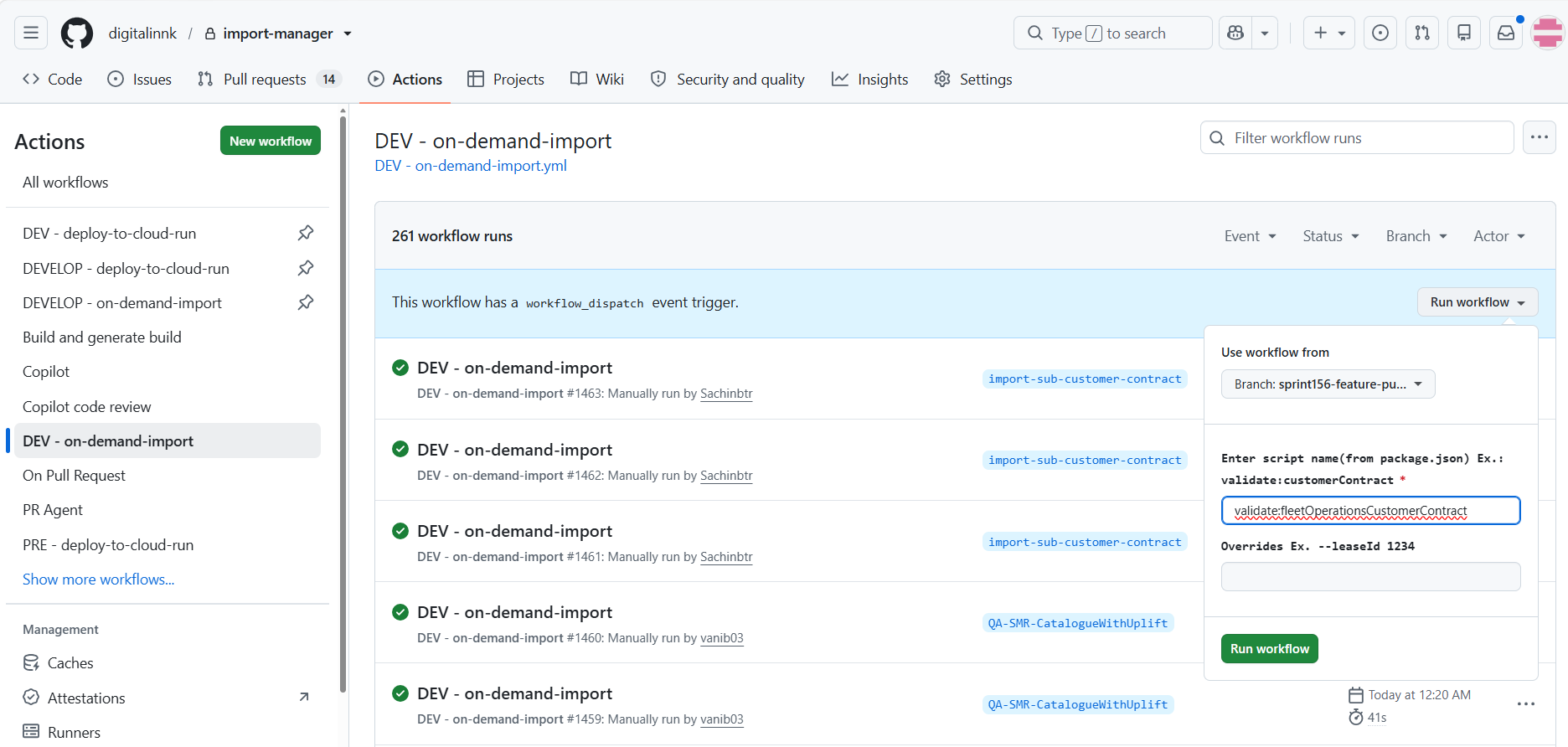
Importing the File
- If the validation passes, proceed with the import.
- Navigate to Actions in the Import Manager.
- Locate
<Environment> - on-demand-import. - Select the branch created for this import.
- Enter the script name as
import:fleetOperationsCustomerContract. - Enter
--persistin the Overrides field (or--leaseId <leaseId> --persistwhen a specific lease is required).
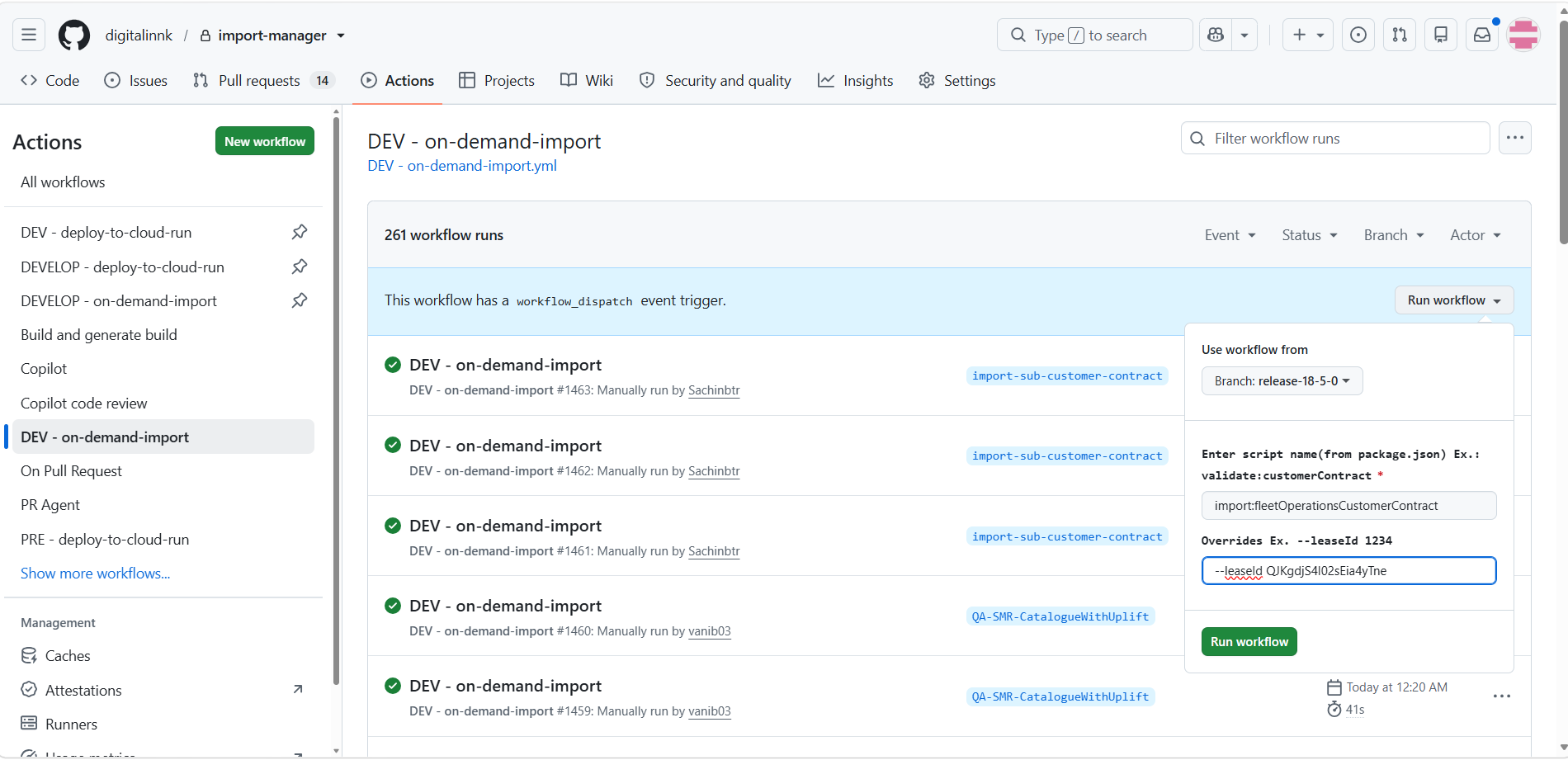
Importing the File via Cloud Run
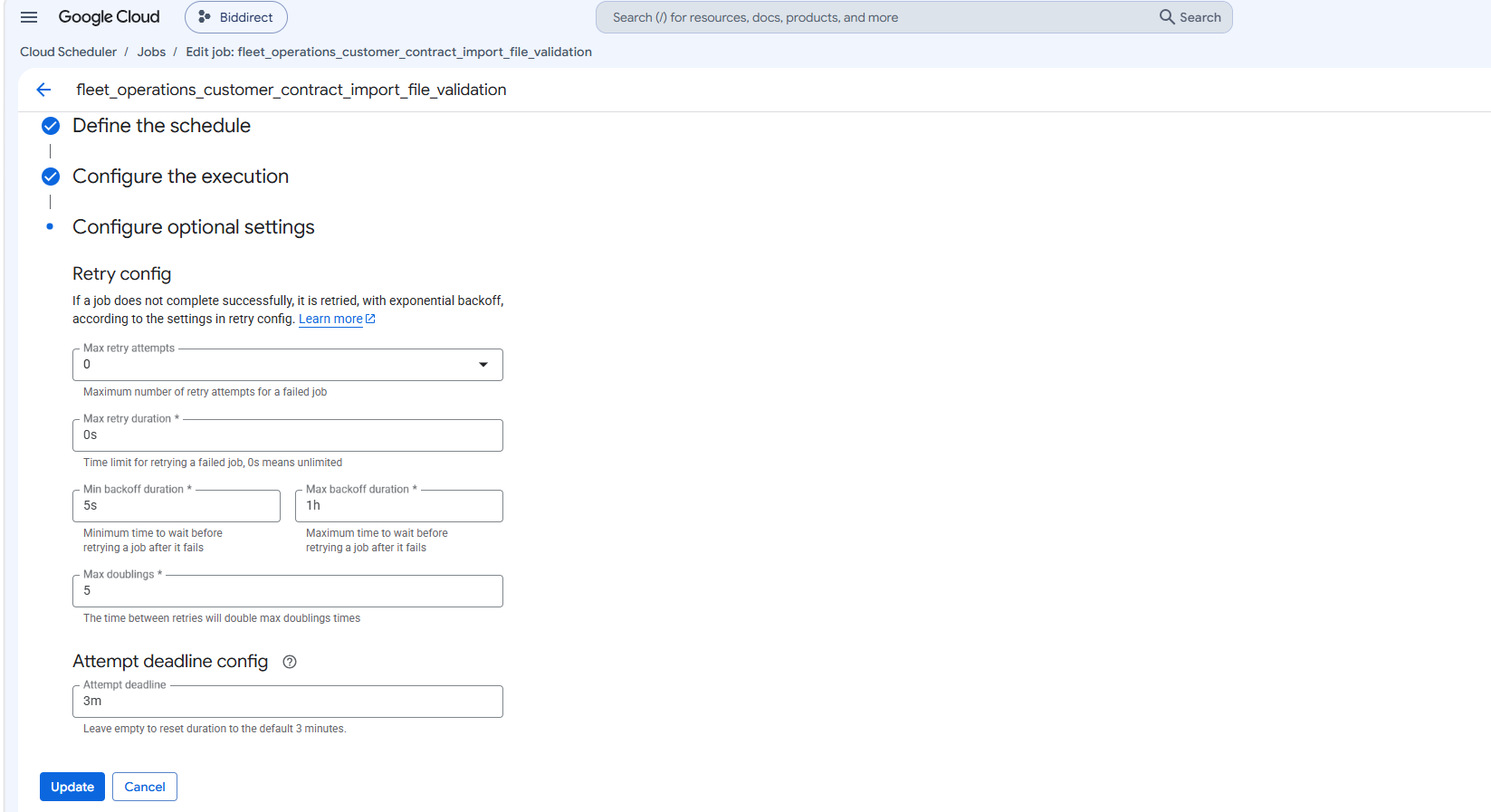
Validation scheduler setup
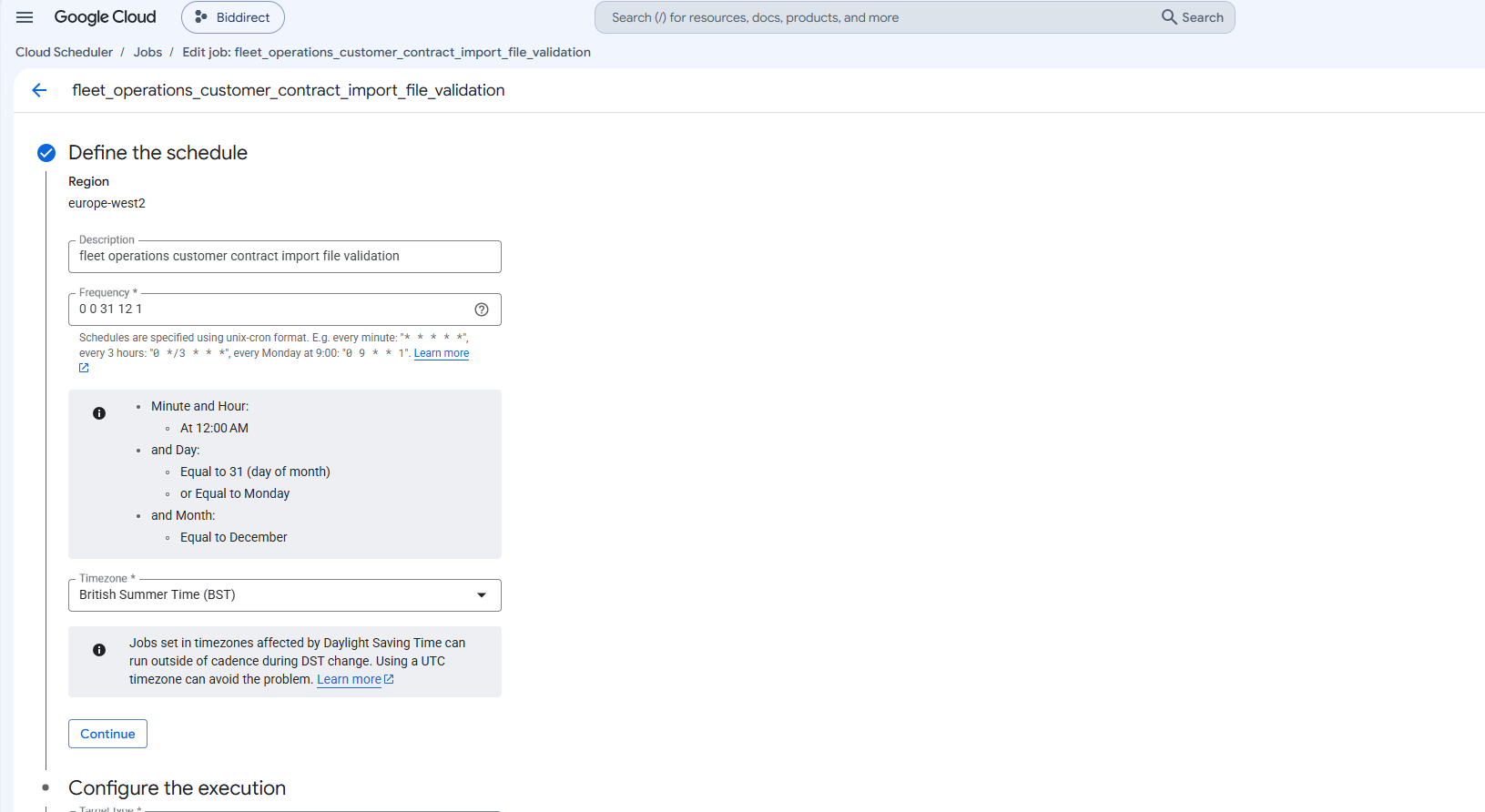
- Go to Cloud Scheduler and select CREATE JOB.
- Configure the Cloud Scheduler with the following parameters:
- Name:
fleet_operations_customer_contract_import_file_validation - Region: europe-west2
- Frequency:
0 0 31 12 1 - Time Zone: British Summer Time (BST)
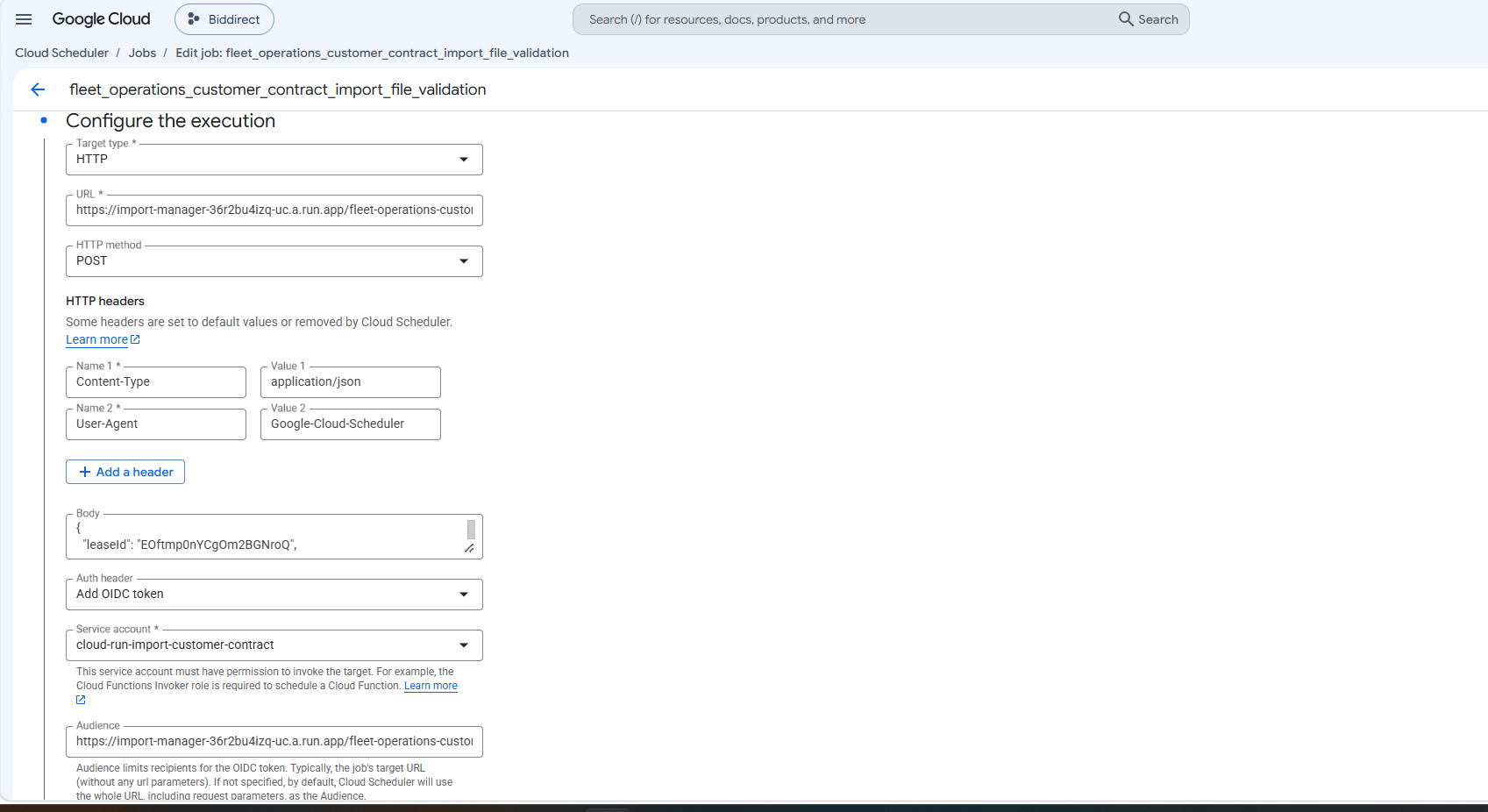
- Target Type: HTTP
- URL:
https://import-manager-36r2bu4izq-uc.a.run.app/fleet-operations-customer-contract - HTTP Method: POST
- Auth Header: Select OIDC Token
- Service Account:
cloud-run-import-customer-contract - Body: Include the following JSON object:
{
  "leaseId": "QJKgdjS4I02sEia4yTne",
  "leaseCompanyName": "Next Fleet Services",
  "persist": "false",
  "bucket": "biddirect-2.appspot.com",
  "appDirectory": "/usr/src/app/",
  "importPath": "imports/fileDrop/",
  "importFileDropPath": "imports/fileDrop/",
  "importFileName": "fleetOperationsCustomerContract.csv",
  "email": "mailgun@digitalinnk.com",
  "fatalErrorEmailToAddress": "mailgun@digitalinnk.com",
  "schema": "FLEET_OPERATIONS_CUSTOMER_CONTRACT",
  "locale": "en_GB"
}
Import scheduler setup
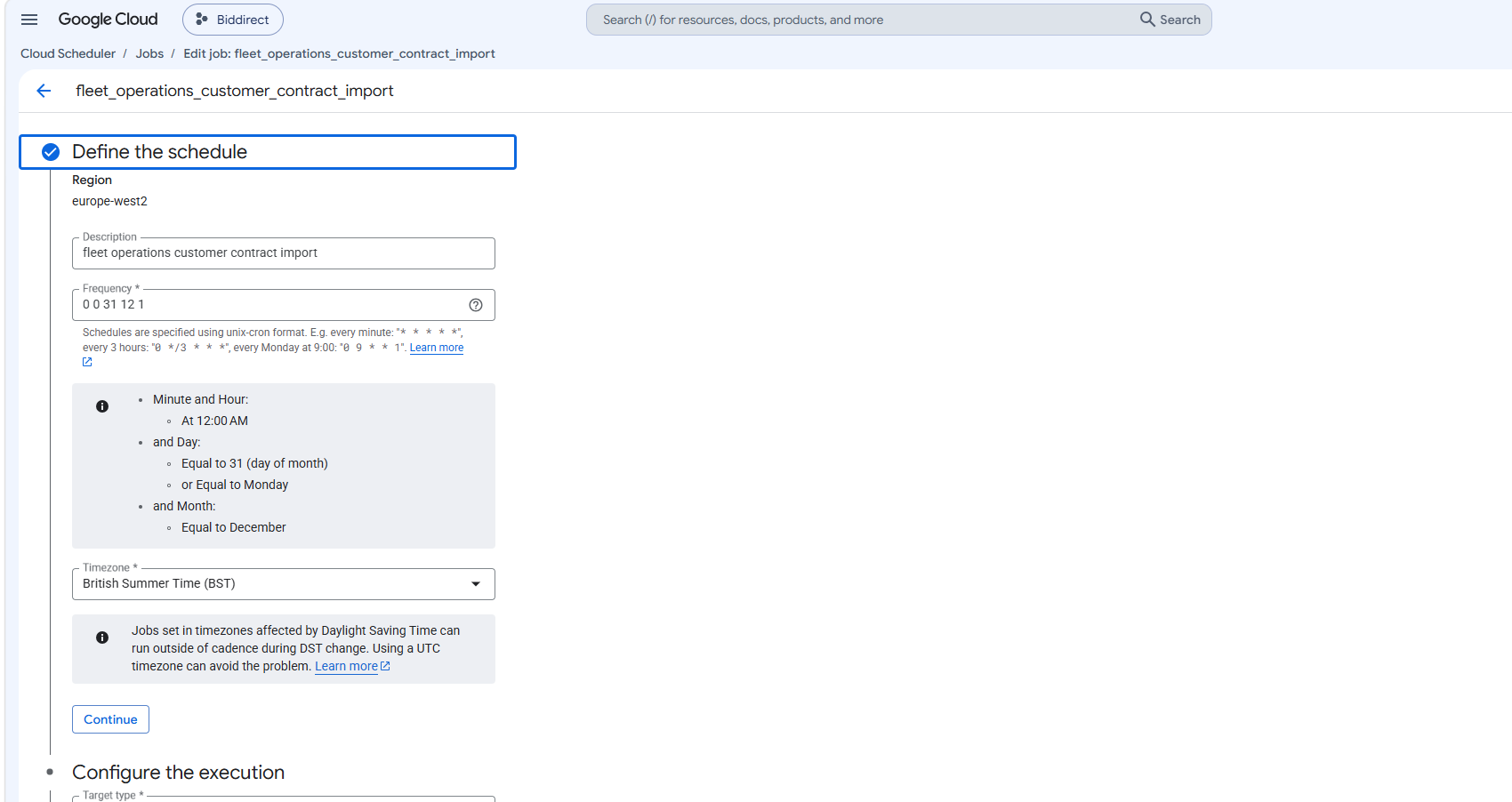
- Go to Cloud Scheduler and select CREATE JOB.
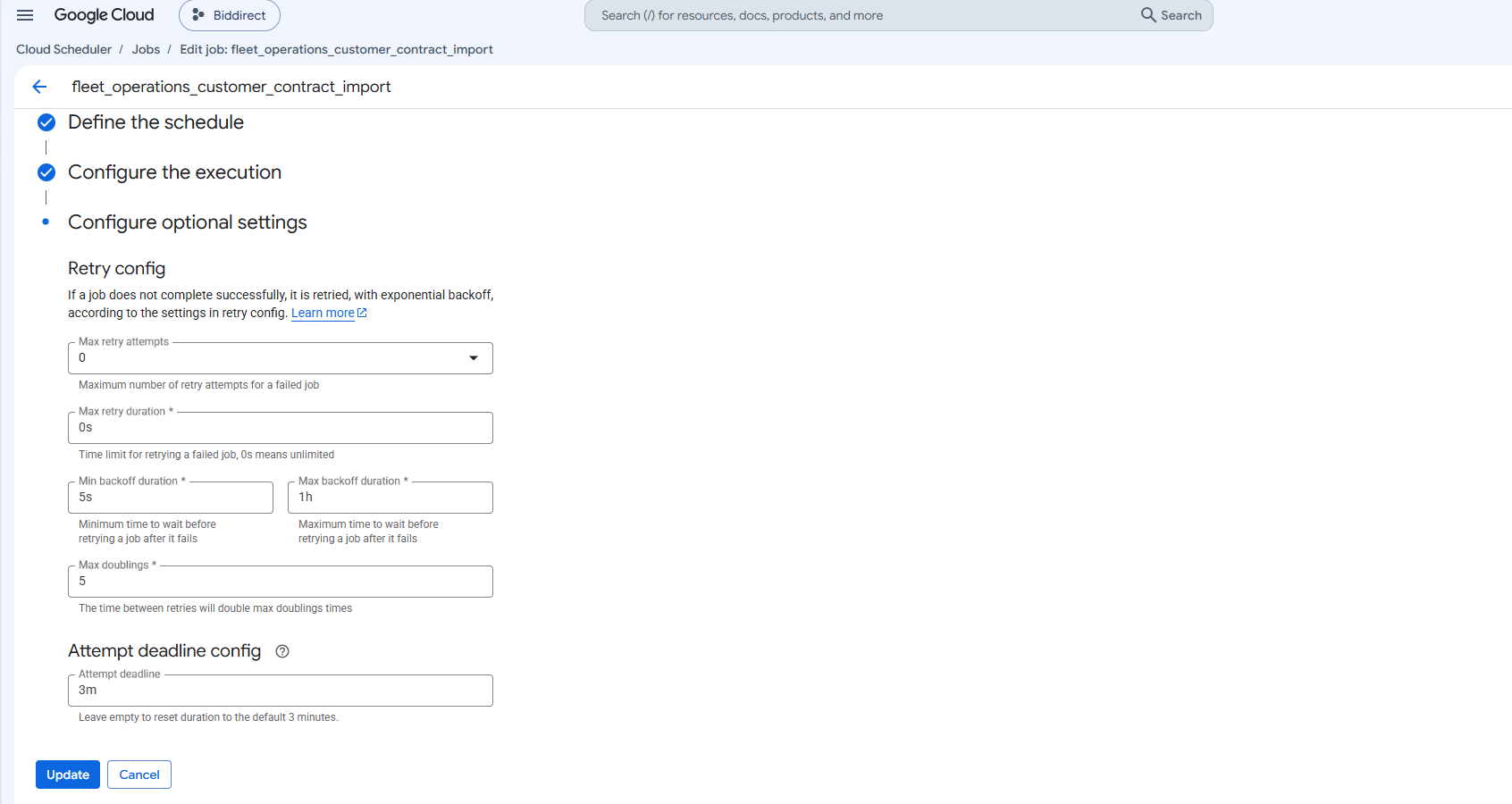
- Configure the Cloud Scheduler with the following parameters:
- Name:
fleet_operations_customer_contract_import - Region: europe-west2
- Frequency:
0 0 31 12 1 - Time Zone: GMT London
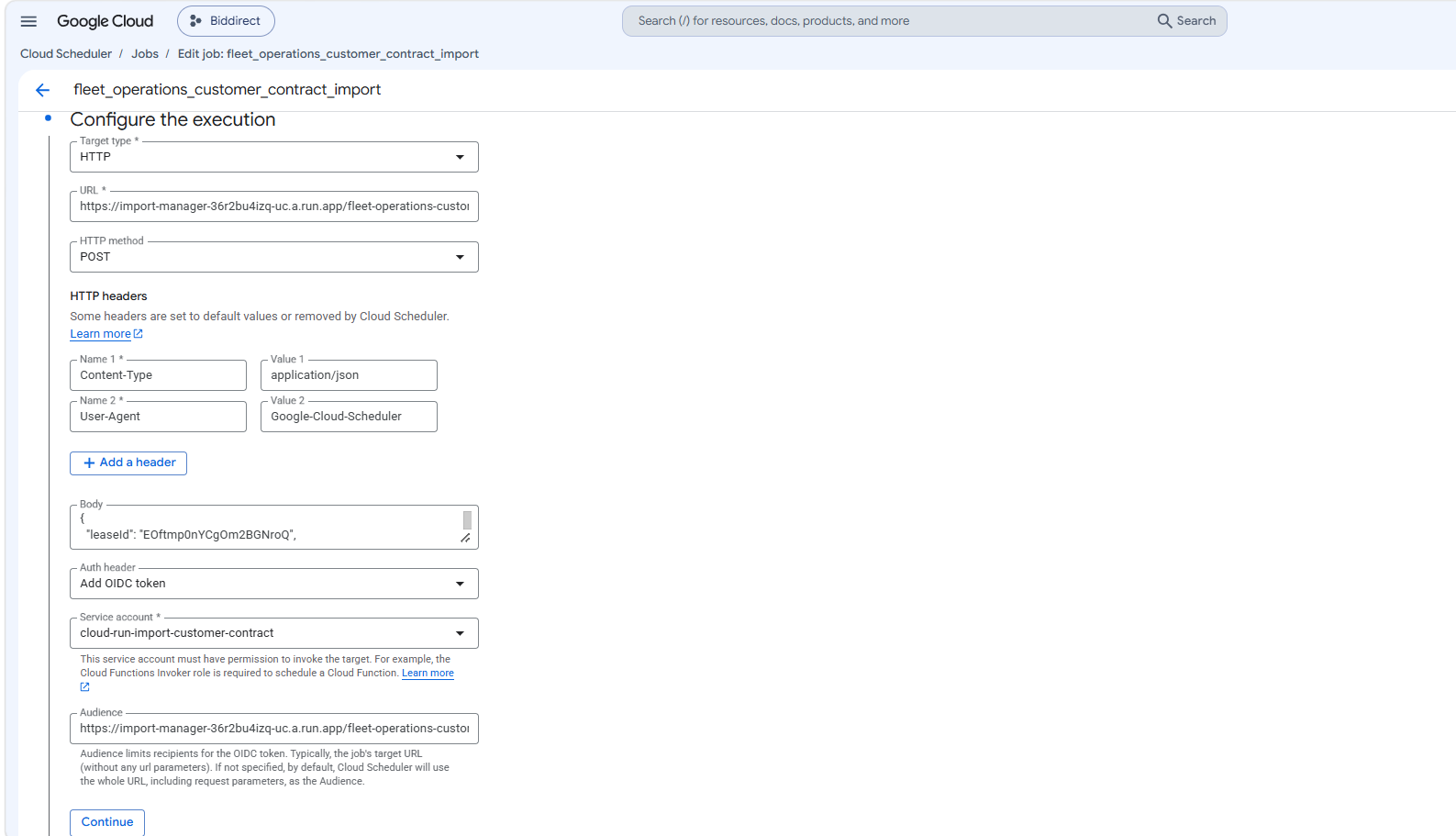
- Target Type: HTTP
- URL:
https://import-manager-36r2bu4izq-uc.a.run.app/fleet-operations-customer-contract - HTTP Method: POST
- Auth Header: Select OIDC Token
- Service Account:
cloud-run-import-customer-contract - Body: Include the following JSON object:
{
  "leaseId": "QJKgdjS4I02sEia4yTne",
  "leaseCompanyName": "Next Fleet Services",
  "persist": "true",
  "bucket": "biddirect-2.appspot.com",
  "appDirectory": "/usr/src/app/",
  "importPath": "imports/fileDrop/",
  "importFileDropPath": "imports/fileDrop/",
  "importFileName": "fleetOperationsCustomerContract.csv",
  "email": "mailgun@digitalinnk.com",
  "fatalErrorEmailToAddress": "mailgun@digitalinnk.com",
  "schema": "FLEET_OPERATIONS_CUSTOMER_CONTRACT",
  "locale": "en_GB"
}
Preparation
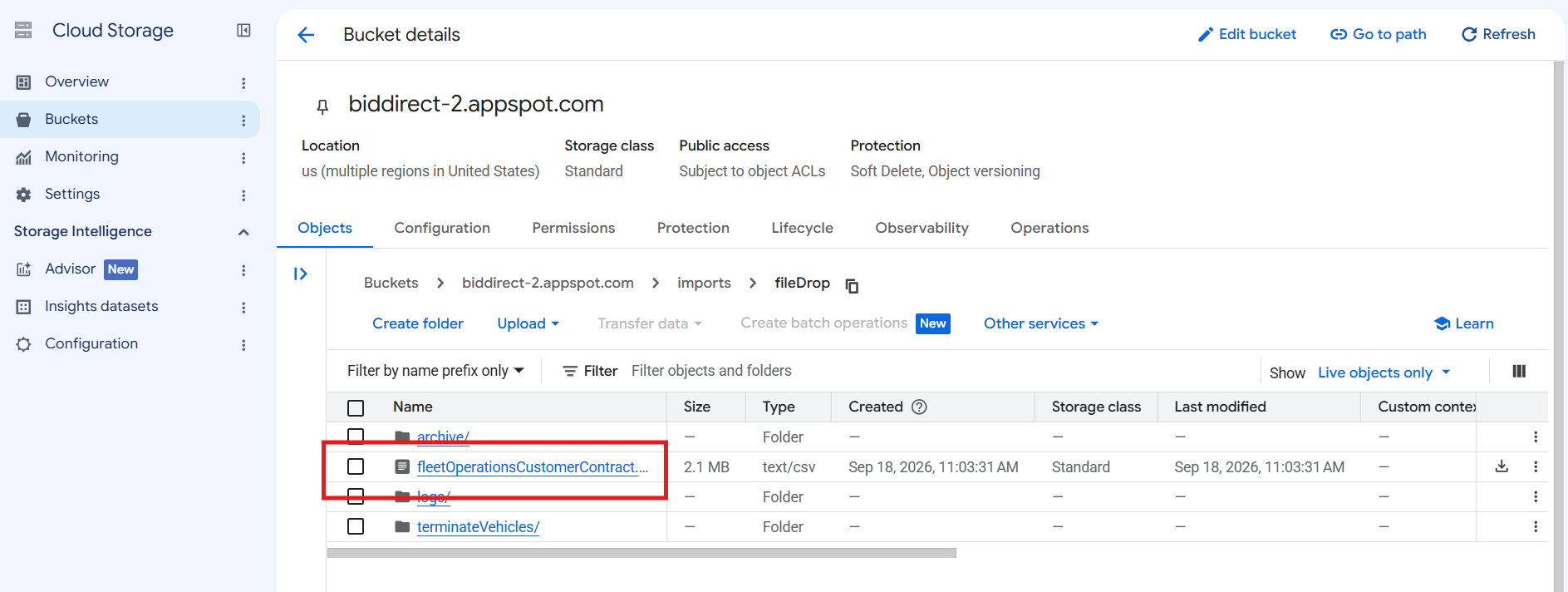
- Bucket Name:
biddirect-2.appspot.com(bucket name may vary across environments). - File Path: Place the file in
imports/fileDropwithin the bucket, using the CSV file named fleetOperationsCustomerContract.csv.
Running validation
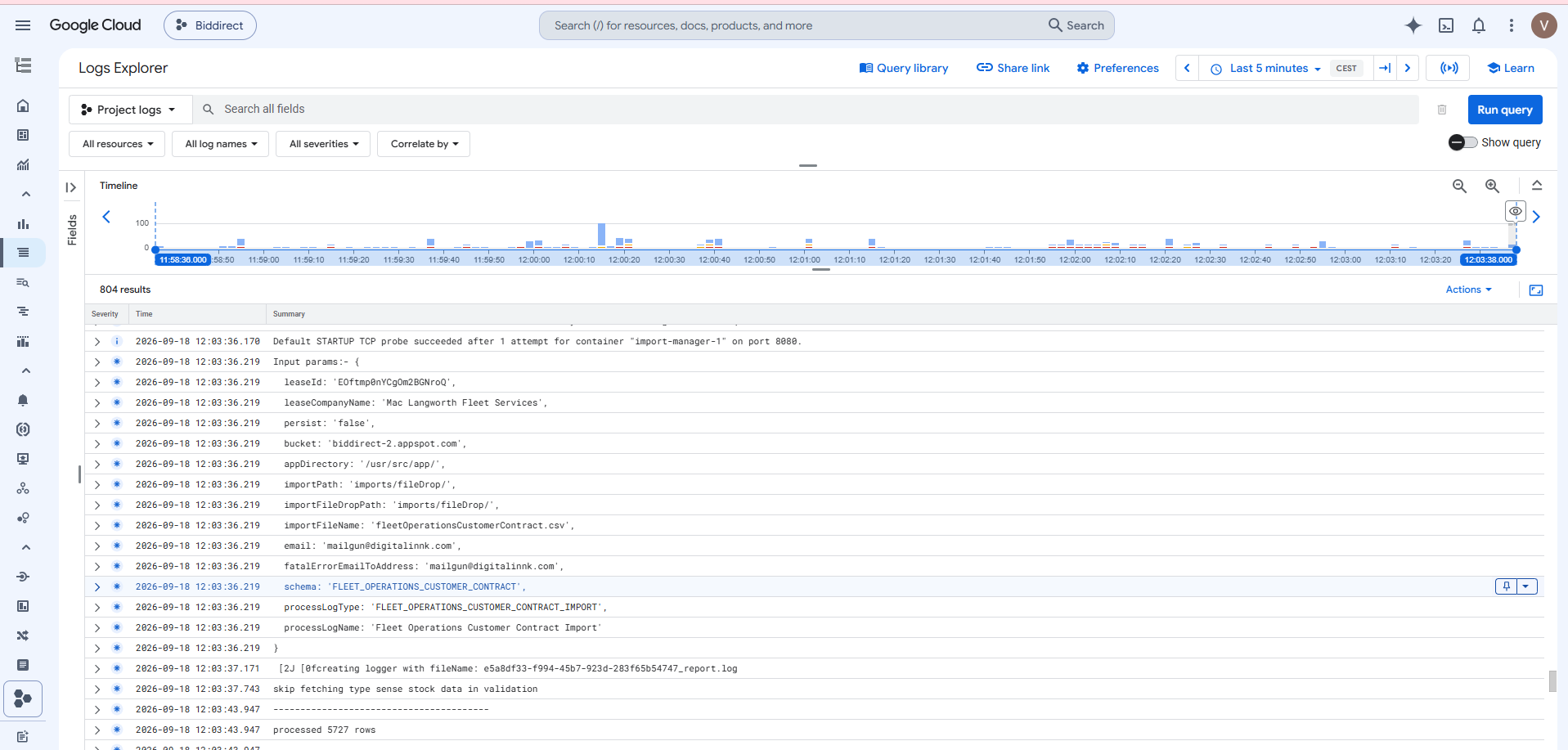
- Go to Cloud Scheduler.
- Run the
fleet_operations_customer_contract_import_file_validationjob (job name may vary in different environments).

Running import
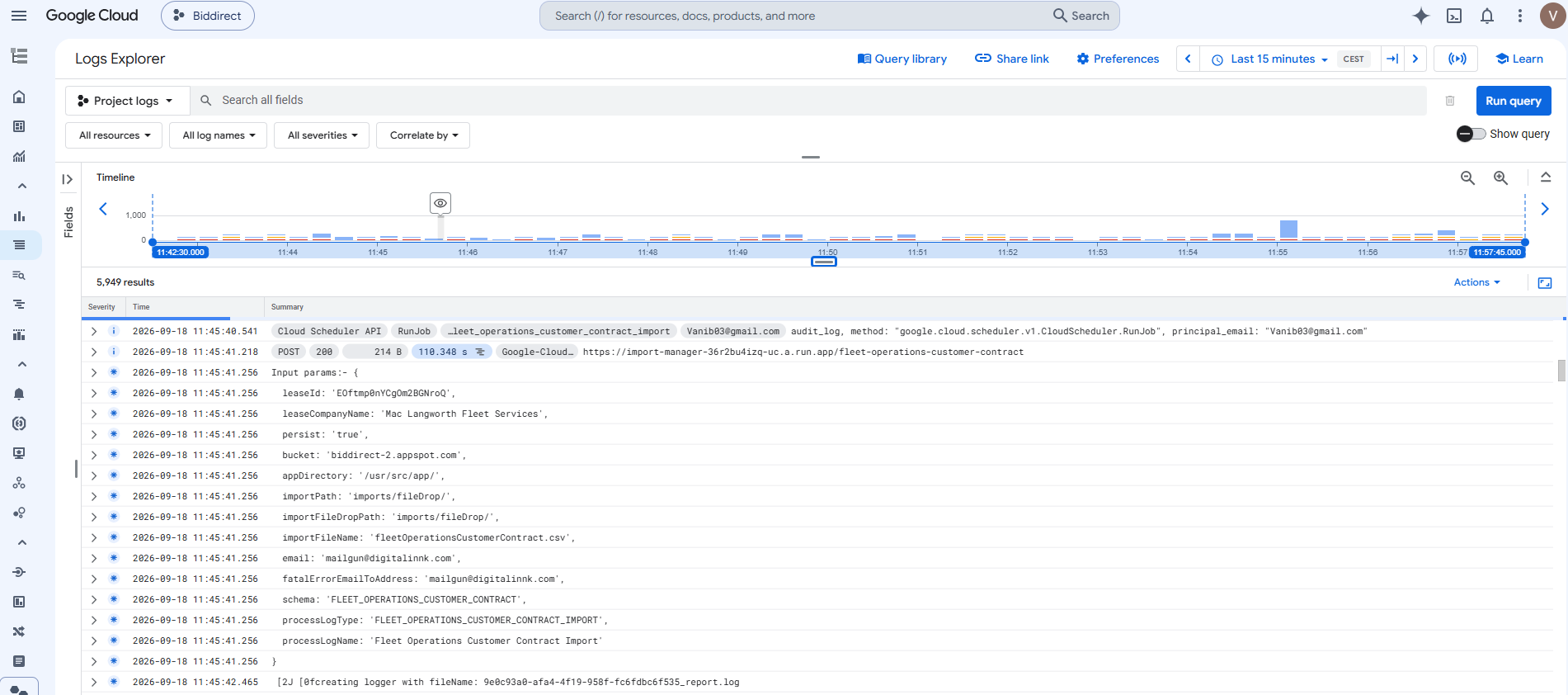
- Go to Cloud Scheduler.
- Run the
fleet_operations_customer_contract_importjob (job name may vary in different environments).

Testing
- After running the import, verify that Fleet Operations vehicles have been successfully imported by navigating to the ViSN customer platform.
- Go to Vehicle Record and search for the imported vehicle to confirm the import process was successful.
- Where Customer Account Number is provided, verify the vehicle is allocated to the matching sub-customer, or that a new sub-customer has been created.
Status: Pending Approval
Category: Protected
Authored By: Vishali on Sep 18, 2026
Revisions